
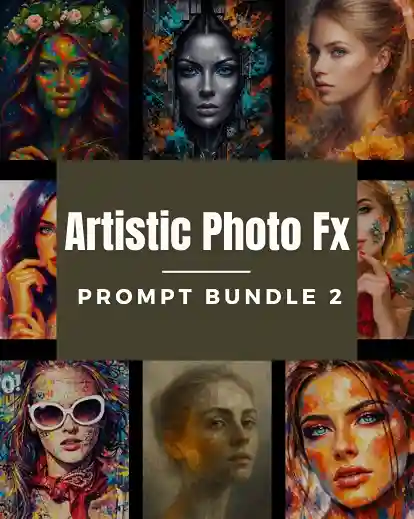

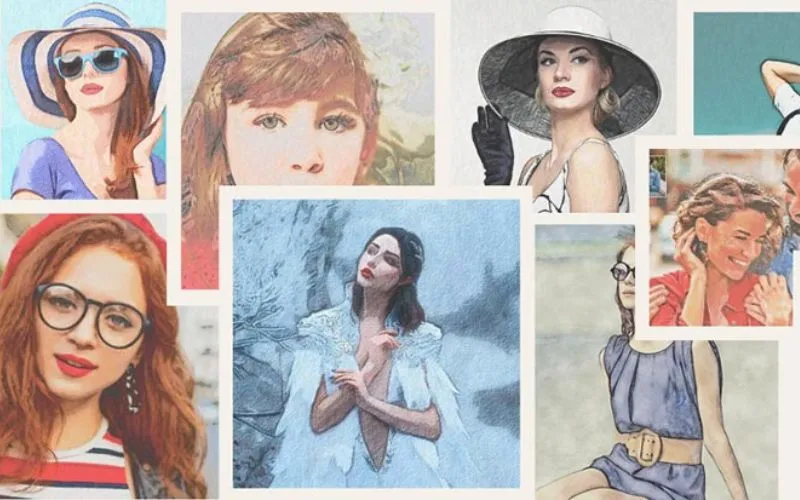
Do you ever feel like your pictures need something extra? Want to make your portraits more exciting and colorful? Well, you’re in luck! With Photoshop portrait effects, you can do just that.
You can make your photos look amazing with all kinds of cool effects. Whether you’re just starting out or you’re already a pro, there’s so much you can do.
Get ready to unleash your creativity as we reveal the best Photoshop portrait effects to jazz up your designs and leave a lasting impression!
Table of contents
- 1. Photoshop Drawing Effects Bundle
- 2. Moody Artistic Photoshop Effects Bundle
- 3. Artistic Photoshop Templates For Photographers
- 4. Supreme Fantasy Photoshop Actions Bundle
- 5. Birds & Butterfly Dispersion Brushes
- 6. Artistic Photoshop Actions Bundle
- 7. 3-In-1 Photoshop Plugins Artistic Effects
- Final Thoughts
- Frequently Asked Questions
1. Photoshop Drawing Effects Bundle
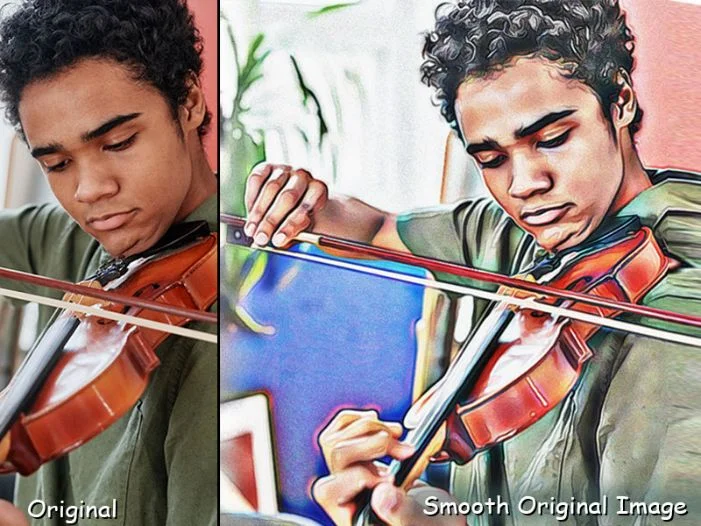
If you’ve been struggling with making your pictures stand out, you should try this Photoshop script. It gives you different layers to add cool effects to your photos. Whether you take pictures of clothes, places, or nature, these Photoshop portrait effects can make your pictures look better.
If you want to do well in photography, you need to have good tools. It’s important for new photographers to have good tools to compete in the market. Investing in tools like this bundle helps you compete with the best.
This bundle contains over 28 drawing effects. It’s easy to use and makes your pictures look awesome.
Grab This Amazing Drawing PS Script
2. Moody Artistic Photoshop Effects Bundle

Artistic Photoshop scripts offer endless possibilities for transforming your images. You can turn your pictures into beautiful line drawings, add watercolor effects, or give them a cartoon-like appearance.
However, not all Photoshop actions are the same. Some give you many effects but are hard to use, while others have limited options. As an artist, you need the freedom to be creative without slowing down your work or spending too much money.
That’s why this bundle of 88 artistic Photoshop effects is perfect. It gives you a wide range of effects, from watercolor to graphic styles, all in one easy-to-use package.
Grab This Artistic Mood Effects Bundle
3. Artistic Photoshop Templates For Photographers
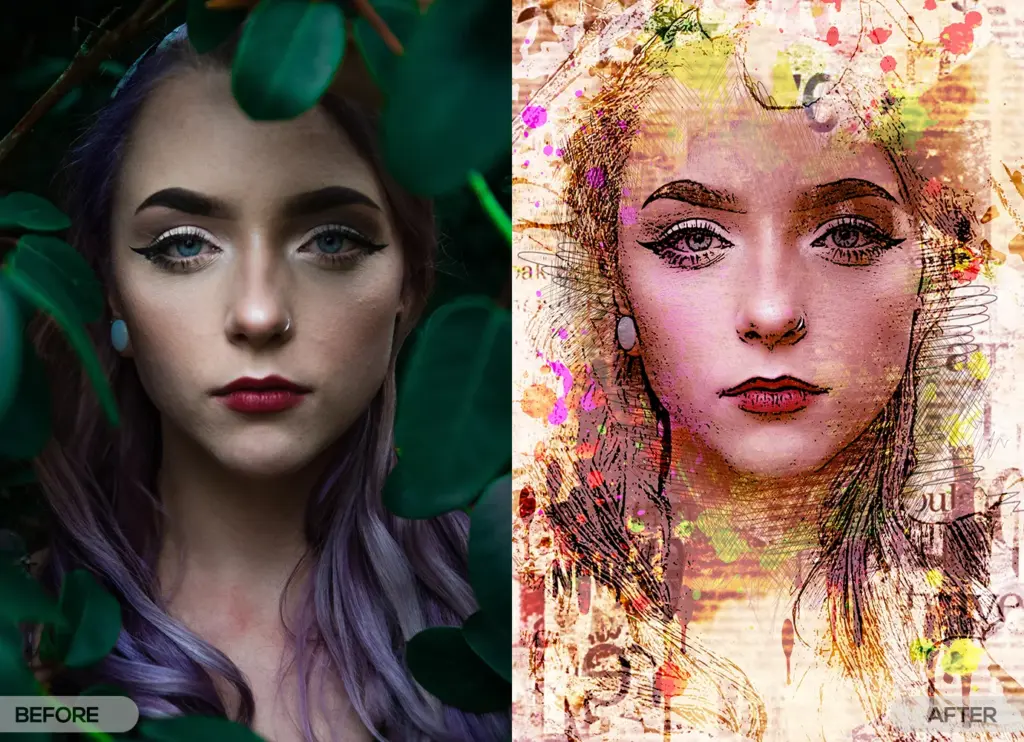
Creating great photos is now easier than ever with these amazing Photoshop photography templates. With just three clicks, you can add that extra special touch to your images.
Whether you’re using them for personal or business purposes, these templates have got you covered. They’re perfect for social media posts, prints, flyers, and more. Plus, they’re super simple to use, saving you time and effort.
Just choose a template, add your images, pick your colors, make any adjustments you need, and you’re done! These 25 templates are not like regular actions. They’re unique Photoshop portrait effects that instantly improve your images.
Grab These Stunning Photography PS Templates
4. Supreme Fantasy Photoshop Actions Bundle
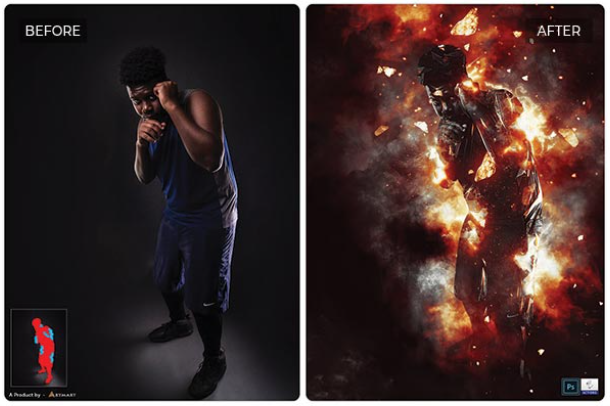
If you want your pictures to look like movie scenes, you need the best tools. But making things like light explosions or frosty scenes in Photoshop is really tricky. You want these effects to look real, like they could happen in your fantasy world.
Luckily, we’ve found the best Photoshop actions for fantasy effects. They can turn your fantasies into awesome photos that will wow your audience. This 19-in-1 actions bundle covers everything from fire explosions to thunderstorms and more.
They’re easy to use too – just brush over your subject and click. Plus, they come with instructions and tutorials to help you get the hang of it. And since they’re non-destructive, you won’t mess up your photos by trying them out.
5. Birds & Butterfly Dispersion Brushes
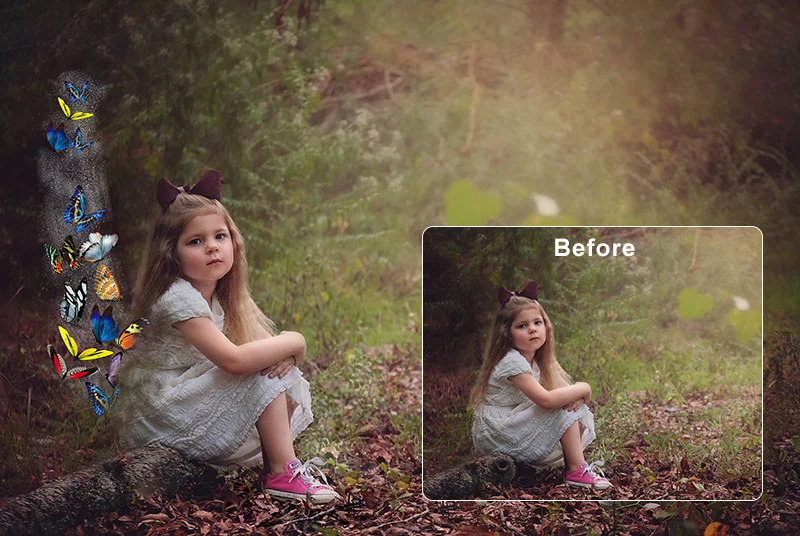
Learn how to make your images look magical and captivating with this dispersion effect in Photoshop. Whether you’re a professional photographer or just love playing with photos, this bundle is perfect for creating stunning images.
With about 50 bird and butterfly PNGs, editable templates, and more, you can turn ordinary photos into extraordinary pieces of art with just a few clicks.
These brushes save you time and effort, making your workflow smoother and your results better. Plus, they’ll impress your clients, friends, and followers with your creative skills.
Grab These Dispersion-Effect Brushes
6. Artistic Photoshop Actions Bundle
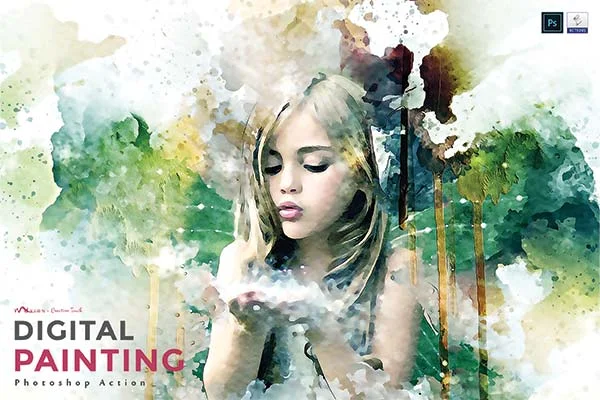
Imagine if you could get a bunch of cool Photoshop actions for less than the price of a cup of coffee. Well, now you can! We’re thrilled to introduce our affordable bundle of 5 powerful Photoshop portrait actions that won’t break the bank.
These actions not only make your photos look amazing but also save you a ton of time. So, you can get professional-quality effects without spending a lot of money.
Grab These Artistic Actions For Photoshop
7. 3-In-1 Photoshop Plugins Artistic Effects
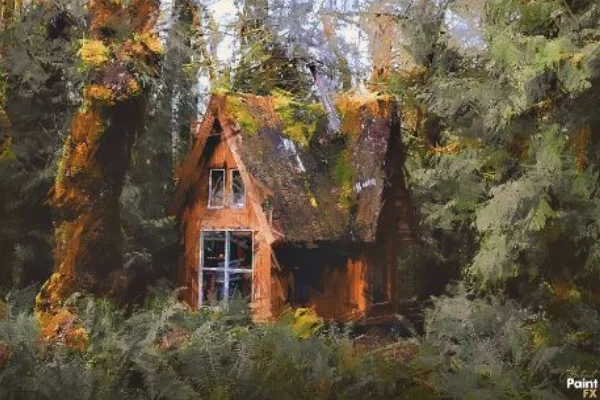
This bundle contains 3 Photoshop plugins for photographers that can make your pictures look amazing. They can turn ordinary images into extraordinary works of art.
You can turn your pictures into beautiful paintings or add cool effects with just one click. Plus, they work in any language, so everyone can use them easily.
Grab These Ultimate Photoshop Plugins
Also check out: How to Create Vintage Photo Effects in Photoshop – A Step-by-Step Guide
Final Thoughts
So there you have it! With these amazing Photoshop portrait effects, you can take your designs from ordinary to extraordinary in no time. With the right tools and a bit of imagination, you can create stunning portraits that will leave everyone in awe. So go ahead, dive into the world of Photoshop portrait effects, and let your designs stand out from the crowd!
Like this post? Check out more amazing photography content here.
Frequently Asked Questions
1. What are some good Photoshop filters for portraits?
Photoshop offers built-in AI tools and third-party plugins to enhance portraits. The fastest options include native Neural Filters (like Skin Smoothing and Smart Portrait) under the Filter menu, and popular external plugins like Imagenomic Portraiture for advanced skin retouching.
2. How can I retouch a portrait in Photoshop?
Portrait retouching in Photoshop starts with basic global adjustments in Camera Raw, followed by detailed skin cleanup and enhancement techniques.
3. How to make Photoshop portrait instead of landscape?
To change a landscape (horizontal) photo into a portrait (vertical) orientation in Photoshop without cutting out important parts, use the Crop Tool combined with Generative Expand.
4. How to get effects in Photoshop?
To add effects in Photoshop, use Layer Styles for text and shapes, Filters for artistic image changes, or Adjustment Layers for color and light. Choose your layer, open the target menu from the top panel or layers dock, and tweak the settings to fit your image.
5. Can you provide a list of Photoshop effects?
Adobe Photoshop features a massive library of built-in filters, adjustments, and creative tools to transform photos, text, and graphics.
6. How to apply 3D effects in Photoshop?
To create a quick 3D text or layer effect in Adobe Photoshop, duplicate your layer, apply a color or gradient overlay, and use repeated keyboard transform shortcuts to stack offset copies, building instant depth and shadow without heavy rendering.