
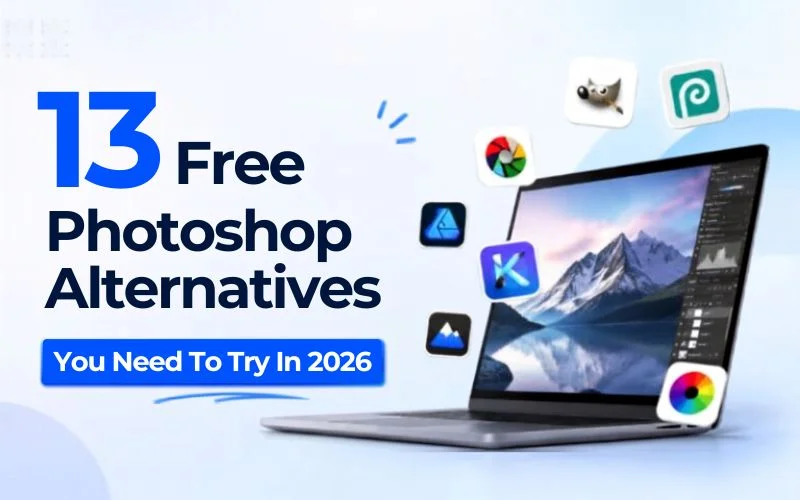
Not ready to pay for Photoshop? You don’t have to. Whether you’re editing photos, creating graphics, or retouching portraits, there are plenty of powerful free Photoshop alternatives that can get the job done. In this guide, we’ll compare the 13 best options so you can find the perfect editor for your workflow.
Table of contents
- Quick Comparison Table
- Best Free Photoshop Alternatives
- 1. Affinity By Canva – Best Overall Free Photoshop Alternative
- 2. GIMP – Open-Source Photoshop Alternative
- 3. Photopea – Browser-Based Tool
- 4. Inkscape – Best For Vector Graphics
- 5. Krita – Best for Digital Painting & Illustration
- 6. Pixlr – AI-Powered Online Photo Editor
- 7. Fotor – Best For Quick Photo Enhancements
- 8. Darktable – Best For RAW Photo Editing
- 9. MyEdit – Everyday Use Free Photoshop Alternative
- 10. Fluer – Best For AI-Powered Creative Visuals
- 11. RawTherapee – Best For Advanced RAW Image Processing
- 12. Polarr – Best For Color Grading
- 13. YouCam Online Editor – AI-Powered Online Photo Editor
- So, Which Photoshop Alternative Is Right For You?
- Frequently Asked Question
Quick Comparison Table
| Software | Best For | Platform | PSD Support | RAW Editing | AI Features |
|---|---|---|---|---|---|
| GIMP | Advanced photo editing | Windows, macOS, Linux | ✅ | Limited | ❌ |
| Photopea | Browser-based editing | Web | ✅ | Limited | ❌ |
| Affinity by Canva | Professional photo editing, graphic design & publishing | Windows, macOS, iPad | ✅ | ✅ | ❌ |
| Inkscape | Vector graphics | Windows, macOS, Linux | Limited | ❌ | ❌ |
| Krita | Digital painting | Windows, macOS, Linux | Limited | ❌ | ❌ |
| Pixlr | AI-powered editing | Web, Mobile | ✅ | Limited | ✅ |
| Fotor | One-click photo enhancement | Web, Windows, Mobile | Limited | ❌ | ✅ |
| Darktable | RAW photo editing | Windows, macOS, Linux | ❌ | ✅ | ❌ |
| MyEdit | AI photo editing | Web | ❌ | ❌ | ✅ |
| Fluer | Creative AI editing | Web | ❌ | ❌ | ✅ |
| RawTherapee | Professional RAW processing | Windows, macOS, Linux | ❌ | ✅ | ❌ |
| Polarr | AI filters & color grading | Web, Windows, macOS, Mobile | Limited | Limited | ✅ |
| YouCam | AI photo enhancement | Online | ✅ | ✅ | ✅ |
Best Free Photoshop Alternatives
1. Affinity By Canva – Best Overall Free Photoshop Alternative
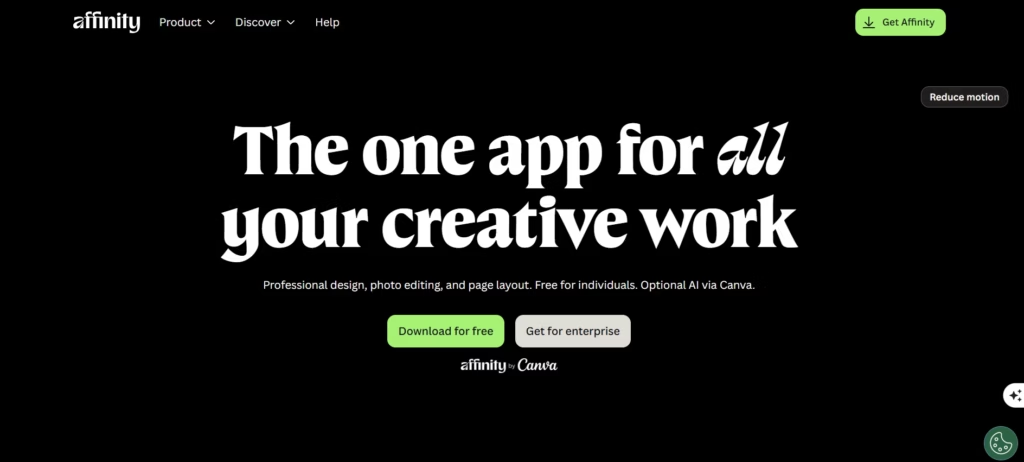
After Canva acquired Affinity, the company made a major announcement in 2025 by making the entire Affinity suite free to download and use. It combines Affinity Photo, Affinity Designer, and Affinity Publisher into one powerful creative platform, giving users everything they need for photo editing, vector design, and page layout.
If you’re looking for the best Photoshop replacement, Affinity by Canva comes incredibly close. Its familiar layer-based workflow, advanced editing tools, and professional features make it an excellent choice for photographers, designers, and digital artists. While Canva’s AI features require a Premium subscription, the core Affinity apps are completely free, making it one of the best free Photoshop alternatives available today.
Best For:
Professional photographers, graphic designers, digital artists, and anyone looking for a powerful Photoshop alternative with advanced editing tools.
Key Features:
- Layer-based editing with masks and adjustment layers
- HDR merge, panorama stitching, focus merge, and astro stacking
- Advanced photo retouching and compositing tools
- Professional vector design and page layout capabilities
- PSD file compatibility
- Modern and intuitive user interface
Pros:
- Completely free!
- Photo editing, vector design and page layout combined
- Photoshop-style layers and adjustments
- HDR Merge, panoramas, focus merge, astro stacking
Cons:
- AI features require a Canva Premium subscription
- No built-in image catalog or photo library management
- Fewer ready-made effects and templates than Canva
If you still use Photoshop occasionally, these free Photoshop plugins can help you work faster and edit more efficiently.
2. GIMP – Open-Source Photoshop Alternative
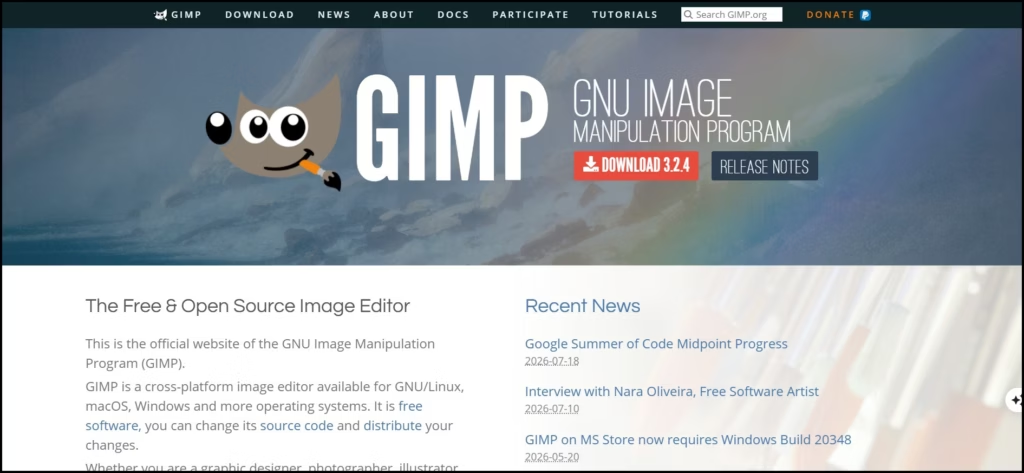
GIMP is an open-source image editor that has been around for over two decades and offers many of the advanced editing tools found in Photoshop.
From photo retouching and image compositing to graphic design and digital artwork, GIMP can handle almost every editing task. While its interface isn’t as polished as Photoshop’s, its feature set makes it one of the strongest free substitutes for Photoshop available today.
Best For:
Professional photo editing, graphic designers, and experienced users who want maximum editing power without paying for Photoshop.
Key Features:
- Layer-based editing
- Layer masks and blending modes
- Advanced selection tools
- Curves and Levels adjustments
- Clone Stamp and Healing tools
- Plugin support for additional functionality
- Custom brushes and filters
- Supports PSD files (with some limitations)
Pros:
- Completely free and open source
- Powerful editing tools comparable to Photoshop
- Highly customizable interface
- Large community and extensive tutorials
- Regular updates
Cons:
- Higher learning curve
- User interface feels outdated
- PSD compatibility isn’t always perfect
3. Photopea – Browser-Based Tool
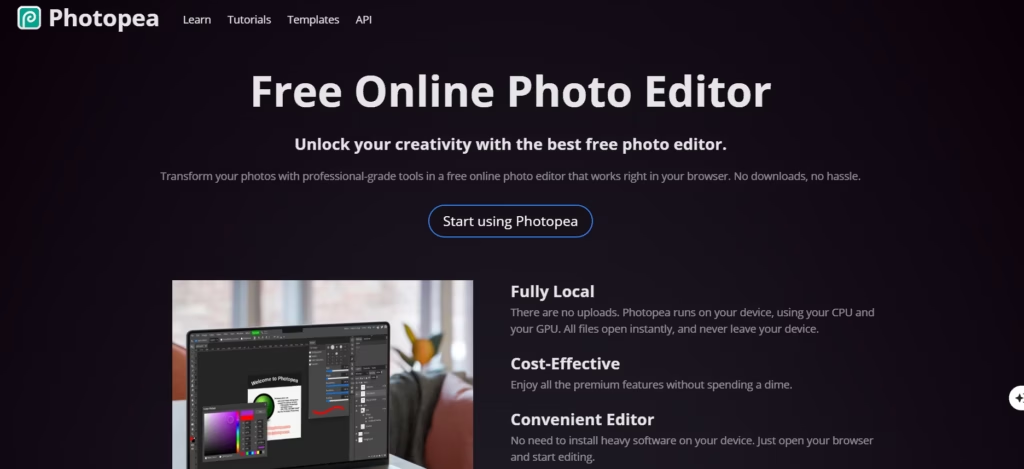
If you don’t want to install software, Photopea is one of the best choices available. It runs entirely in your browser and looks remarkably similar to Adobe Photoshop, making it easy for Photoshop users to get started.
Despite being web-based, Photopea supports advanced editing tools, layers, masks, smart objects, and even PSD files. It’s arguably the best Photoshop online alternative for anyone who needs powerful editing on any computer.
Whether you’re making quick edits, designing social media graphics, or working with PSD files, Photopea delivers an impressive experience for a free browser app.
Best For:
Users who want a browser-based Photoshop replacement without installing software.
Key Features:
- No installation required
- PSD, Sketch, XD, and AI file support
- Layer masks and adjustment layers
- Smart Objects
- Advanced selection tools
- Text editing and typography tools
- Export in multiple formats
Pros:
- Free to use
- Interface closely resembles Photoshop
- Opens PSD files with excellent compatibility
- Works on any operating system
- Fast and lightweight
Cons:
- Ads in the free version
- Requires an internet connection
- Large projects may run slower than desktop software
Looking to edit smarter? Check out our guide to the best AI tools for photographers for faster editing and enhanced creativity.
4. Inkscape – Best For Vector Graphics
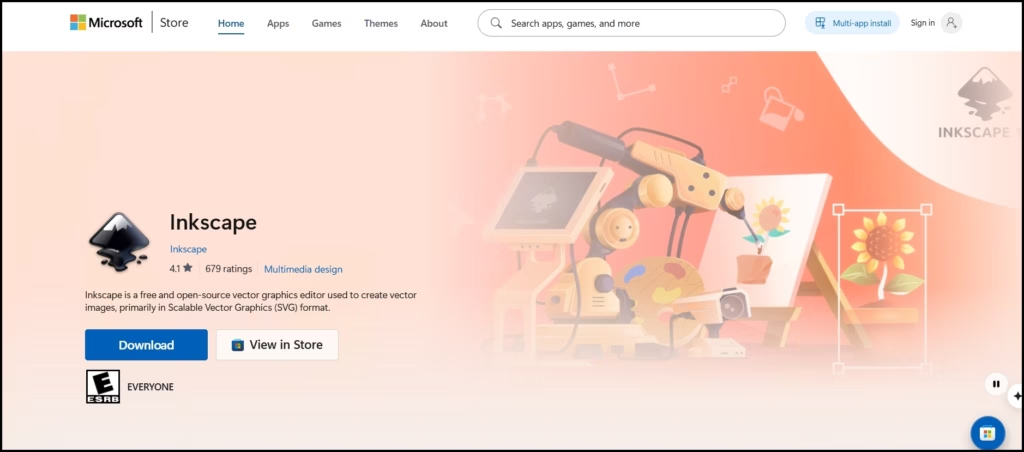
If your work revolves around logos, icons, illustrations, or vector graphics, Inkscape is an excellent Photoshop substitute. Unlike Photoshop, which focuses on raster images, Inkscape is built specifically for creating and editing scalable vector graphics (SVG).
While it isn’t a direct replacement for photo editing, it’s one of the best free design tools available and a great companion to GIMP or Photopea.
Best For:
Graphic designers, illustrators, logo designers, and anyone working with vector graphics.
Key Features:
- Professional vector editing tools
- SVG file support
- Bezier and Pen tools
- Shape creation and manipulation
- Text editing
- Object alignment and snapping
- Path operations
- Wide file format compatibility
Pros:
- Completely free and open source
- Powerful vector editing capabilities
- Great for logos, icons, and illustrations
- Active community and regular updates
- Cross-platform support
Cons:
- Not designed for advanced photo editing
- Can feel slow with complex projects
- Interface takes time to learn
5. Krita – Best for Digital Painting & Illustration
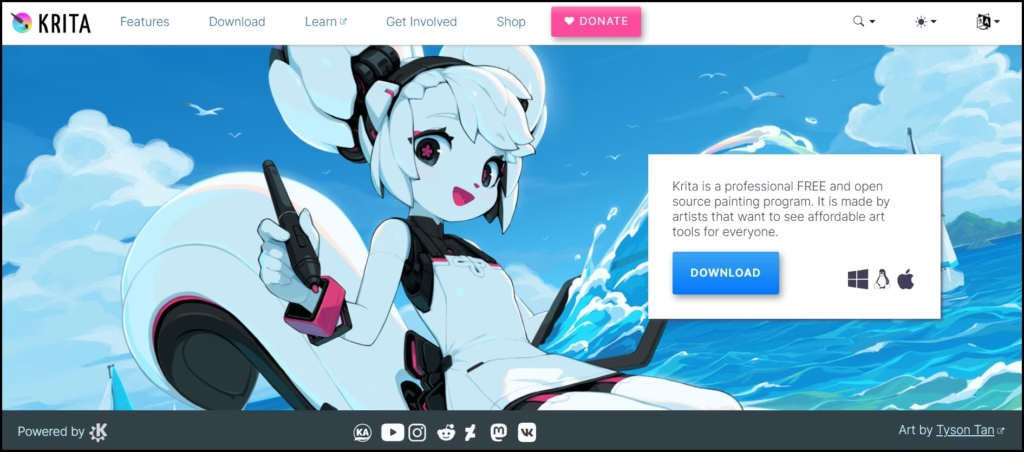
Originally developed for digital artists, Krita has evolved into one of the most powerful free creative applications available today. Although it’s best known for painting and illustration, it also includes many image editing tools that make it a capable free photo editor like Photoshop.
With support for layers, masks, blending modes, and hundreds of customizable brushes, Krita is a favorite among illustrators, concept artists, comic creators, and matte painters.
Best For:
Digital artists, illustrators, painters, and creative professionals.
Key Features:
- Advanced brush engine
- Layer-based editing
- Layer masks and blending modes
- Brush stabilization
- Animation support
- HDR painting
- Perspective assistants
- PSD file import
Pros:
- Completely free and open source
- Industry-leading painting tools
- Highly customizable workspace
- Excellent brush performance
- Regular feature updates
Cons:
- Photo editing tools aren’t as extensive as Photoshop
- Can feel overwhelming for beginners
- Better suited for artwork than heavy photo retouching
6. Pixlr – AI-Powered Online Photo Editor
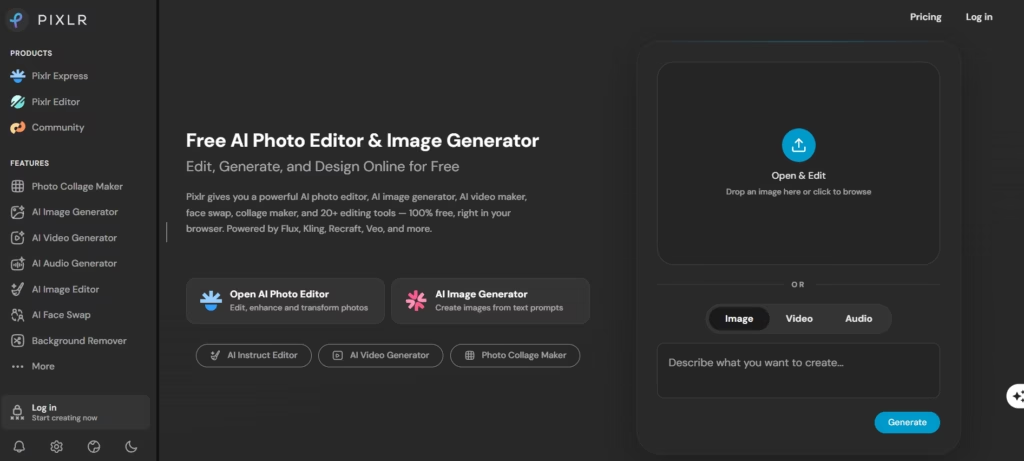
If you’re looking for a quick, AI-powered Photoshop online alternative, Pixlr is one of the easiest tools to use. It combines traditional editing features with AI-powered tools that help remove backgrounds, erase unwanted objects, generate images, and enhance photos in just a few clicks.
Pixlr offers two editors: Pixlr X for beginners and Pixlr E for more advanced editing.
Best For:
Content creators, social media managers, beginners, and users who want fast AI-powered editing.
Key Features:
- AI background remover
- AI object removal
- Layer support
- Templates for social media
- Filters and effects
- Text and graphic overlays
- Browser-based editing
- Mobile app available
Pros:
- Beginner-friendly interface
- Powerful AI editing tools
- No software installation required
- Works on almost any device
- Fast editing workflow
Cons:
- Free plan includes ads
- Some AI tools require credits
- Fewer advanced editing features than Photoshop
If AI-powered image creation interests you, our AI Digital Photo Art Learning Path will help you master the latest creative techniques.
7. Fotor – Best For Quick Photo Enhancements
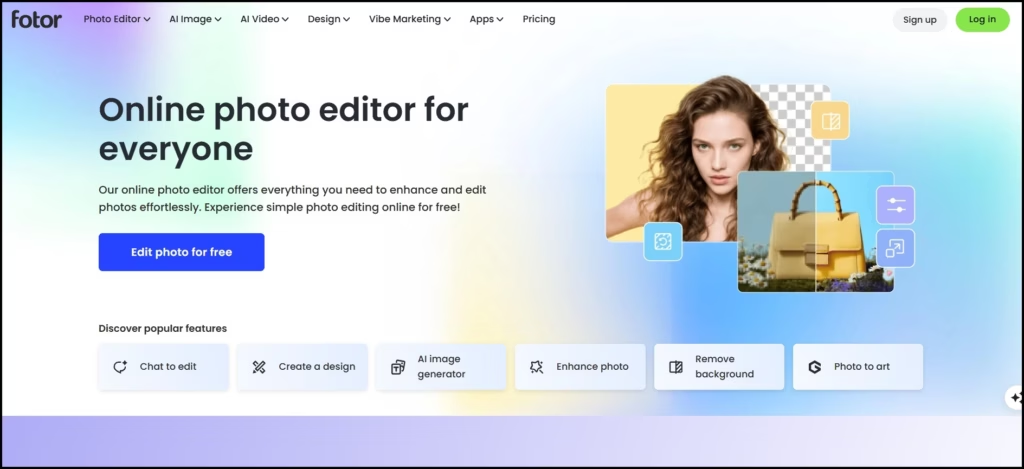
Fotor is designed for users who want great-looking photos without spending hours learning complex editing software. Its intuitive interface and AI-powered enhancement tools make it one of the easiest free substitutes for Photoshop for everyday editing.
Whether you’re editing portraits, creating social media graphics, or enhancing travel photos, Fotor delivers professional-looking results with minimal effort.
Best For:
Beginners, casual photographers, bloggers, and social media creators.
Key Features:
- One-click photo enhancement
- AI photo retouching
- Background removal
- Beauty retouching tools
- Filters and effects
- Collage maker
- Design templates
- Batch editing
Pros:
- Very easy to learn
- Excellent AI enhancement tools
- Attractive interface
- Great for social media content
- Available on multiple devices
Cons:
- Many premium features require a paid plan
- Limited advanced editing tools
- Not ideal for complex photo manipulation
8. Darktable – Best For RAW Photo Editing
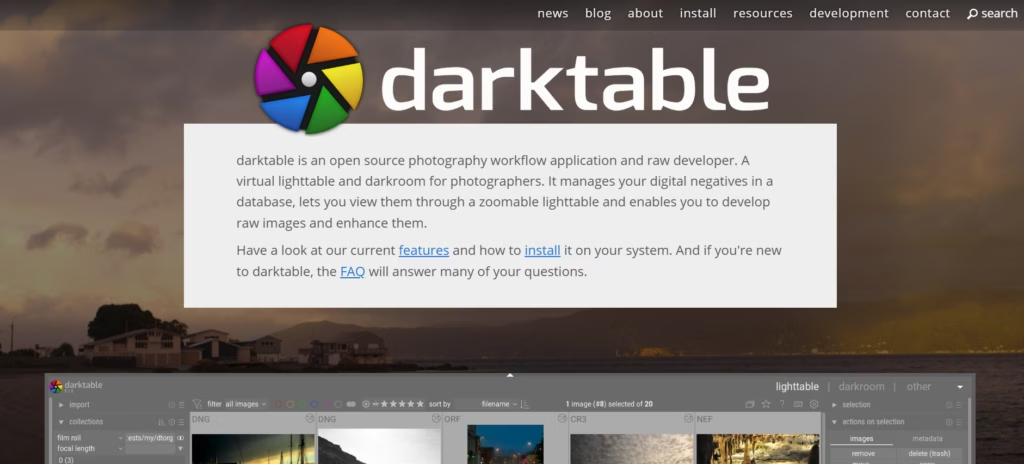
If you’re a photographer who primarily shoots in RAW, Darktable is one of the strongest free tools you can use. Often compared to Adobe Lightroom, it offers professional-grade RAW processing and non-destructive editing, making it an excellent free Photoshop alternative for photographers.
Darktable gives you precise control over exposure, color, tone, sharpness, and noise reduction, helping you produce high-quality images without paying for expensive editing software.
Best For:
Professional photographers, hobbyists, and anyone who edits RAW photos.
Key Features:
- Non-destructive RAW editing
- Advanced color correction
- Tone curves and Levels
- Noise reduction and sharpening
- Lens correction
- Perspective correction
- Batch photo processing
- Tethered shooting support
Pros:
- Completely free and open source
- Excellent RAW processing tools
- Professional-quality results
- Non-destructive workflow
- Supports hundreds of camera models
Cons:
- Not ideal for graphic design
- Interface can feel overwhelming at first
- Steeper learning curve than beginner editors
9. MyEdit – Everyday Use Free Photoshop Alternative
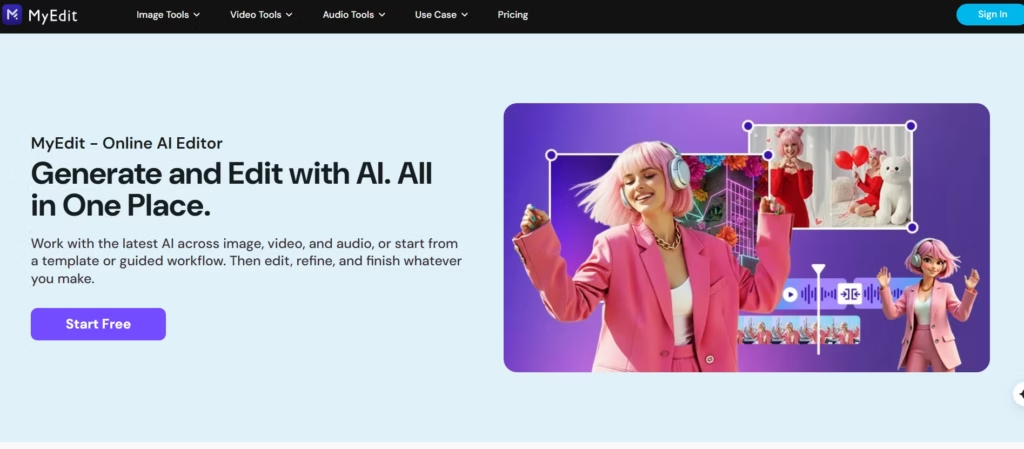
If you prefer AI to do most of the work, MyEdit is worth checking out. This browser-based editor focuses on AI-powered tools that make editing quick and effortless. From removing backgrounds to generating AI images and enhancing portraits, MyEdit helps you achieve impressive results without advanced editing skills.
While it doesn’t replace Photoshop for complex projects, it’s a convenient Photoshop online alternative for everyday edits.
Best For:
Content creators, marketers, social media users, and beginners.
Key Features:
- AI image generator
- AI background removal
- AI object removal
- Photo enhancement
- Portrait retouching
- AI image expansion
- Browser-based editing
Pros:
- Extremely easy to use
- No software installation needed
- Fast AI-powered editing
- Great for quick content creation
- Clean, beginner-friendly interface
Cons:
- Limited manual editing tools
- Some premium AI features require payment
- Not suitable for complex photo manipulation
Want to capture stunning portraits from the start? Explore our Professional Portrait Photography Learning Path and learn from expert photographers.
10. Fluer – Best For AI-Powered Creative Visuals
Fluer is a newer AI-powered creative editor designed for users who want stylish edits without spending hours learning professional software. It focuses on creativity and automation, making it ideal for generating eye-catching visuals for social media, presentations, and digital content.
Although it isn’t a full-fledged Photoshop substitute, it’s a useful option for creators who value speed and simplicity.
Best For:
Content creators, influencers, marketers, and casual users.
Key Features:
- AI-powered image editing
- Background removal
- Creative filters
- Image enhancement
- Text-to-image generation
- Browser-based workflow
Pros:
- Simple and intuitive interface
- Fast AI editing
- Great for creative content
- No installation required
Cons:
- Limited advanced editing features
- Relatively new platform
- Not designed for professional retouching
11. RawTherapee – Best For Advanced RAW Image Processing
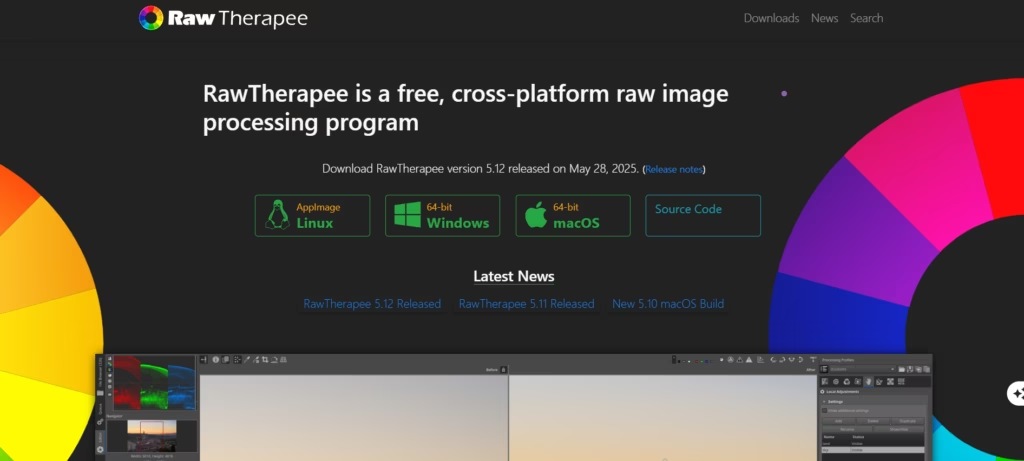
RawTherapee is another excellent choice for photographers who regularly shoot in RAW format. It offers advanced image processing tools that rival many premium applications, making it one of the best Photoshop alternatives for serious photographers.
Its detailed controls over exposure, color, sharpening, and noise reduction make it ideal for users who want complete control over every image.
Best For:
Professional photographers and advanced users working with RAW files.
Key Features:
- Advanced RAW processing
- Non-destructive editing
- Color management
- Noise reduction
- Lens correction
- Detail enhancement
- Batch processing
- Wide camera compatibility
Pros:
- Completely free
- Outstanding RAW editing capabilities
- Professional-level image quality
- Frequent updates
- Cross-platform support
Cons:
- Interface feels dated
- Not suitable for graphic design
- Learning curve for beginners
Take your editing skills beyond the basics with Working With AI As A Photographer, a masterclass designed to help photographers embrace AI with confidence.
12. Polarr – Best For Color Grading
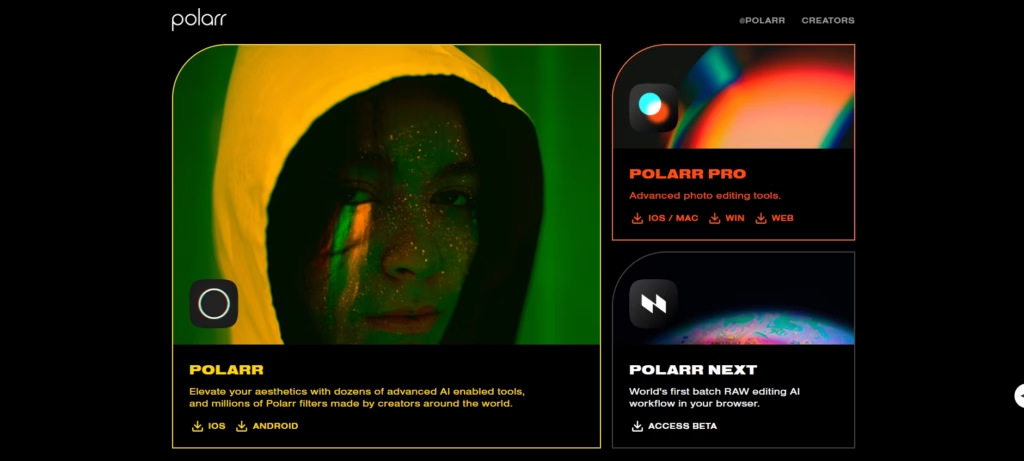
Polarr combines traditional photo editing with modern AI-powered tools, making it a great option for photographers, creators, and social media enthusiasts. Its intuitive interface and impressive collection of filters allow you to enhance photos quickly while still offering enough manual controls for more experienced users.
If you’re looking for a lightweight free photo editor like Photoshop that works across multiple devices, Polarr is definitely worth trying.
Best For:
Mobile photographers, social media creators, and beginners.
Key Features:
- AI-powered filters
- Color grading tools
- Face detection and retouching
- Batch editing
- Cloud synchronization
- Custom filter creation
- Cross-device support
Pros:
- Easy-to-use interface
- Excellent color grading tools
- Available on desktop and mobile
- AI-powered enhancements
- Great for quick edits
Cons:
- Some advanced features require a premium plan
- Limited support for complex photo manipulation
- Not as powerful as Photoshop for professional workflows
13. YouCam Online Editor – AI-Powered Online Photo Editor
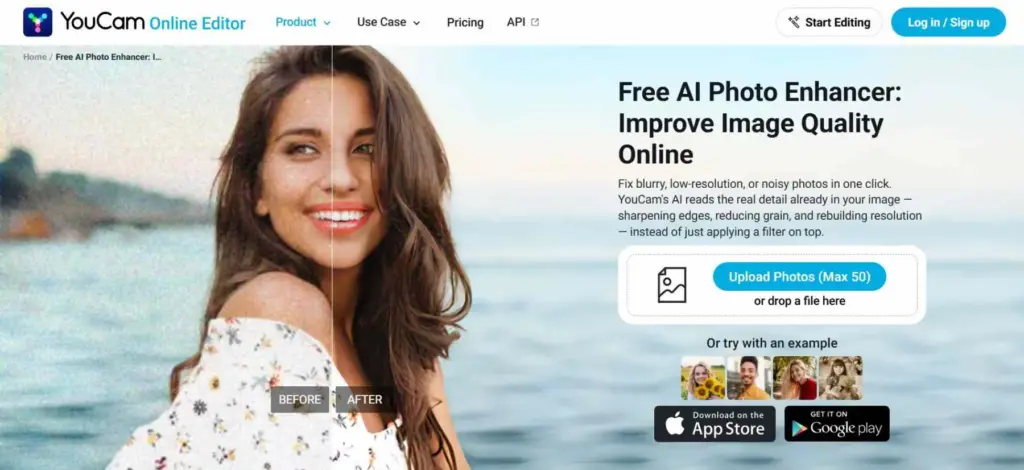
YouCam Online Editor is a browser-based AI photo editor designed for quick photo enhancements, retouching, and creative edits. You can edit and enhance images directly in your browser without installing desktop software, making it a convenient option for everyday photo editing.
From enhancing blurry or low-resolution photos to removing unwanted objects and backgrounds, YouCam Online Editor offers a collection of AI-powered tools that simplify common editing tasks. It also includes creative features such as AI image generation, image-to-video creation, hairstyle changes, and virtual outfit changes.
Best For:
Photographers, content creators, social media users, and anyone looking for an easy-to-use AI photo editor for quick enhancements and creative edits.
Key Features:
- AI photo enhancement and image upscaling
- AI object and background removal
- AI color correction and image restoration
- AI image generation and creative editing
- AI image-to-video generation
- AI hairstyle and clothes-changing tools
Pros:
- Easy to use with a minimal learning curve
- Works directly in a web browser
- Wide range of AI-powered editing tools
- Useful for both photo enhancement and creative content creation
- 5 Free credits upon sign-up
Cons:
- Require a paid plan to continue using advanced features
- Not designed to replace Photoshop’s advanced layer-based editing and compositing workflow
So, Which Photoshop Alternative Is Right For You?
| If you want… | Choose… |
|---|---|
| A professional editing experience with advanced layer-based tools | Affinity by Canva |
| A completely free open-source editor | GIMP |
| Edit photos directly in your browser | Photopea |
| Professional RAW photo editing | Darktable |
| Advanced RAW image processing | RawTherapee |
| Digital painting and illustration | Krita |
| Create logos and vector graphics | Inkscape |
| Fast AI-powered online editing | Pixlr |
| Beginner-friendly photo enhancement | Fotor |
| Quick AI edits with minimal effort | MyEdit |
| Creative AI-powered visuals | Fluer |
| Fast color grading and social media edits | Polarr |
| Online AI-powered editor | YouCam |
No matter which editor you choose, these free photography tutorials can help you take your skills to the next level.
Frequently Asked Question
Q.1 Is there a completely free Photoshop alternative?
Ans. Yes. Several powerful editors are completely free, including GIMP, Photopea, Krita, Darktable, RawTherapee, and Inkscape. These tools offer many of the core features found in Photoshop without requiring a subscription.
Q.2 Which free Photoshop alternative is easiest?
Ans. For beginners, Fotor, Pixlr, and MyEdit are among the easiest to use. Their simple interfaces and AI-powered tools make photo editing quick and approachable, even if you have little to no editing experience.
Q.3 Which one is closest to Photoshop?
Ans. GIMP is widely considered the closest free desktop alternative to Photoshop because it supports layers, masks, advanced selection tools, plugins, and extensive image editing features. If you prefer working in a browser, Photopea is the closest Photoshop-like experience online.
Q.4 Can free editors open PSD files?
Ans. Yes. Editors such as Photopea, GIMP, Affinity Photo, and Krita can open PSD files. However, some advanced Photoshop features, such as Smart Objects or certain effects, may not transfer perfectly.
Q.5 Which software is best for photographers?
Ans. If your primary focus is photography, Darktable and RawTherapee are excellent choices. They provide professional RAW processing, non-destructive editing, color correction, and batch editing tools that are ideal for photographers.
Q.6 Which is the best free Photoshop alternative for beginners?
Ans. Beginners usually find Fotor, Pixlr, and Photopea the easiest to learn. They offer intuitive interfaces and essential editing features without overwhelming new users.