




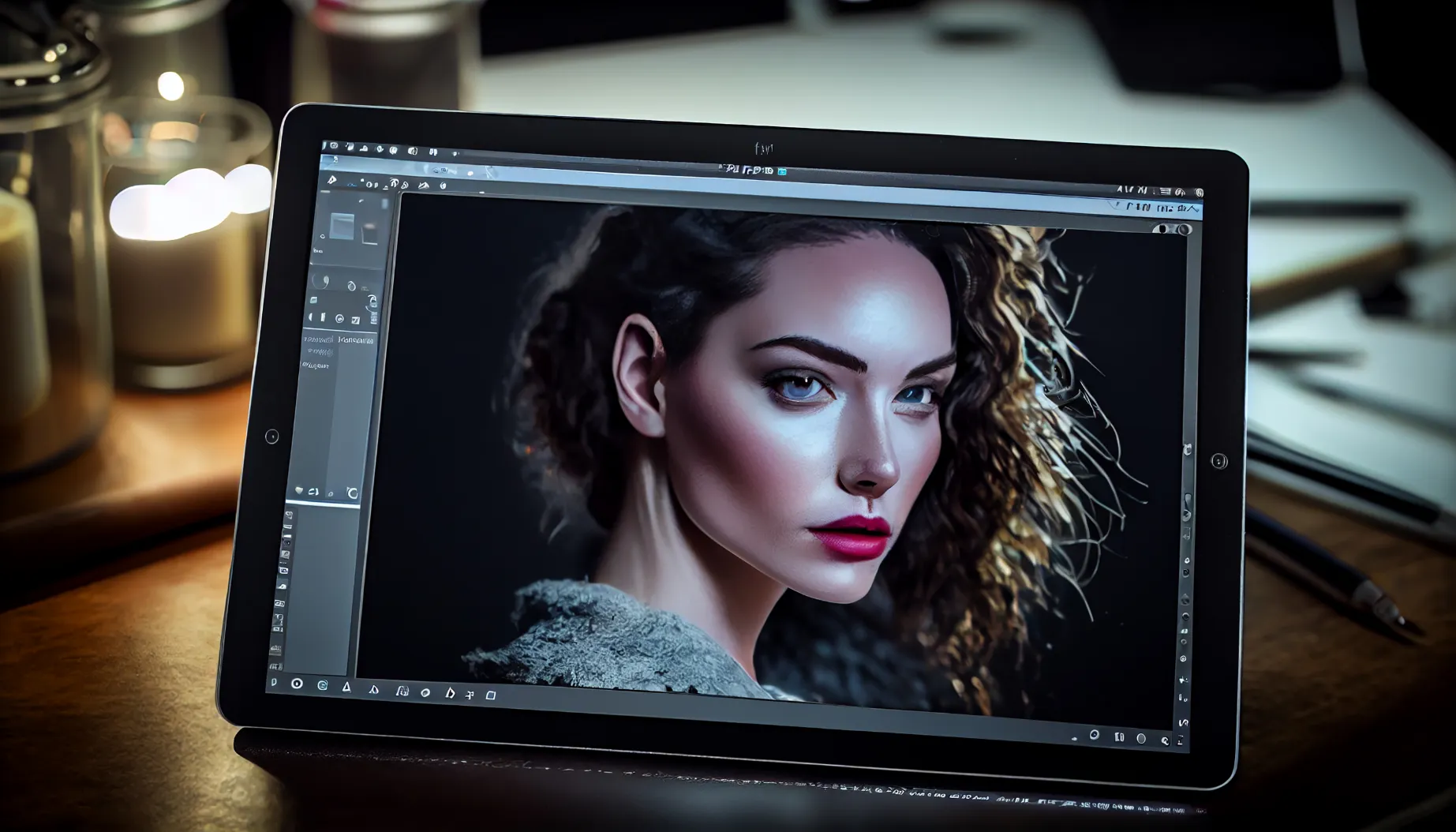
Are you exhausted from spending hours in Photoshop modifying and retouching your pictures? Well, you should thank Photoshop AI, the photo editing tool of the future!

Table of contents
What Is Photoshop AI?
Photoshop is a life-saving software for so many photographers. This software offers many tools and features that significantly benefit photographers’ workflow.
AI has made everything more accessible and effective: automated image retouching, image enhancement, and more.
Photoshop AI, often called Adobe Photoshop with Artificial Intelligence, is revolutionary in digital photo editing.
The abilities of artificial intelligence and the widely used Photoshop software from Adobe are brought together.
Thanks to this combo, Photoshop’s AI can now comprehend, analyze, and enhance your photographs in previously unthinkable ways.

How Is Photoshop AI A Magic Wand For Automated Editing?
Photoshop AI’s capacity to automate various editing operations is one of its most outstanding features.
Let’s explore some of the ways Photoshop AI can make your editing process simpler:
Remove Tool :
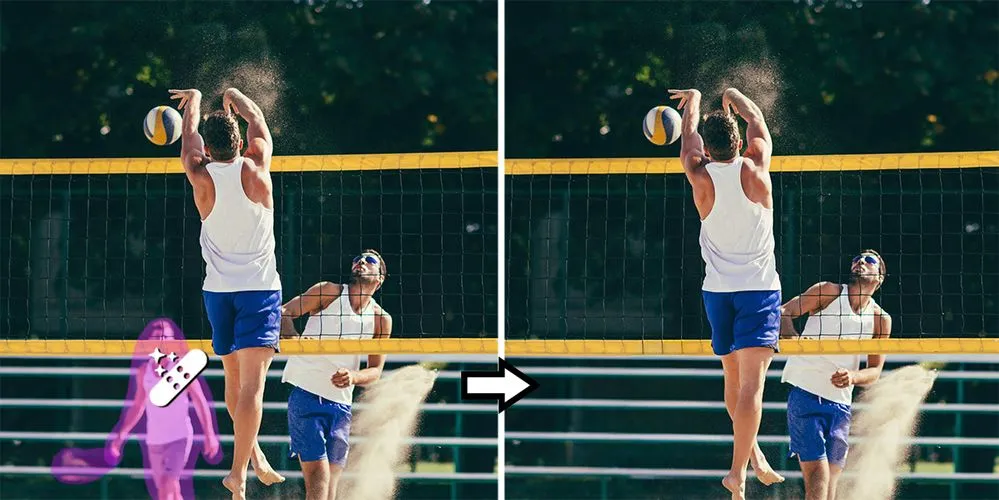
Have you got unwanted areas in your images?
This tool will help you fix that problem. Brush over the undesirable portions of your image to replace them with similar content. You can access this tool from the toolbar.
Curvature Pen Tool :
The curvature tool is similar to the pen tool. You can draw intuitively straight lines and rounded curves with the Curvature Pen Tool then quickly edit them.
The new Curvature Pen Tool can be found within the Pen Tool on the Photoshop Tool Bar.
Match Font :
Finding the right font that matches your images can be a hassle. But the Photoshop AI is making it easier for you.
Now, find the suitable matches for fonts you love in your pictures or photos.
Preserve Details 2.0 :
If you still believe that you can’t make an image larger without looking terrible, Adobe and Photoshop are out to prove you wrong.
It uses advanced, “deep learning” artificial intelligence to detect and maintain important image details without oversharpening anything else.
Sky Replacement :
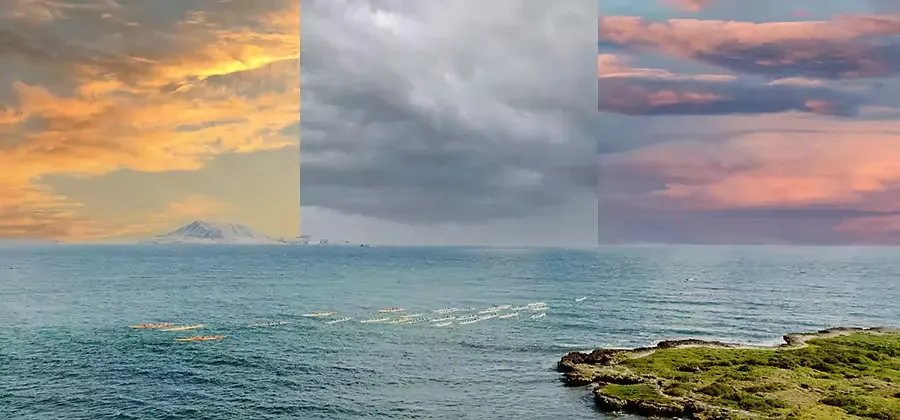
Aesthetic skies are the most common and pleasing on everyone’s social media today. But not every day the sky can be as beautiful as you accept, or sometimes you may fail to capture the beauty of the sky with your camera. Photoshop AI has got a solution for that as well.
Photoshop AI has a sky replacement tool that will help you to replace the sky in your image, and Photoshop will automatically mask and mix the change.
Object Selection Tool and Refine Edge :
The Refine Edge Tool is designed to accurately select intricate shapes, including hair, branches, and other complex edges within an image.
It enables precise selection of specific areas, such as individuals in a photograph, for cropping or other editing purposes. Create distinct selections and masks with ease.
Neutral Filters :
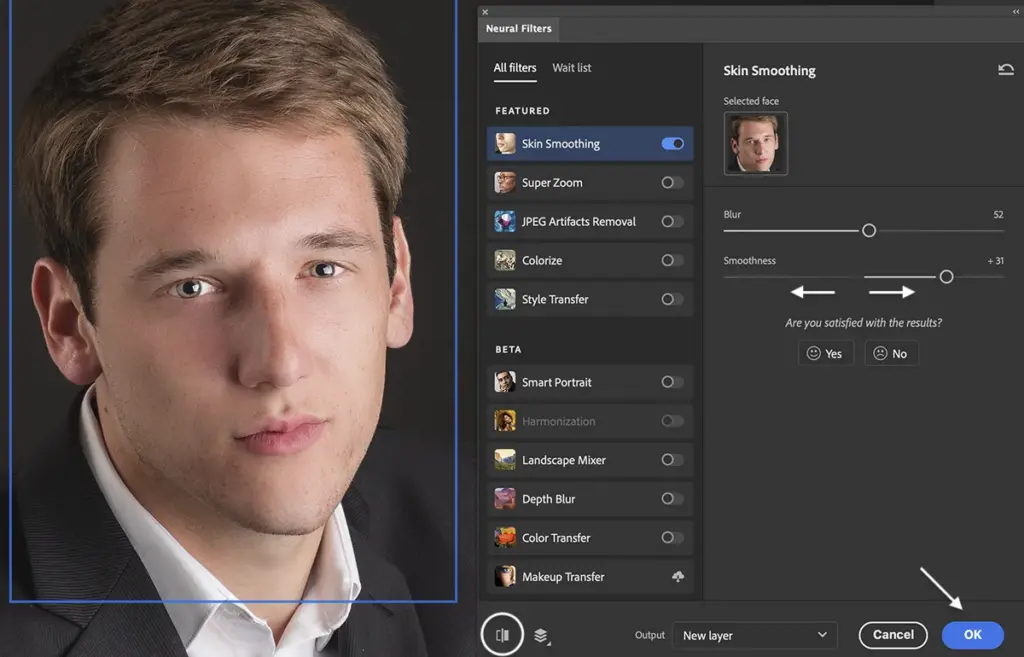
Reduce larger workflows to just a few clicks with a library of filters powered by machine learning.
Neural Filter is a powerful tool that allows you to experiment with non-destructive, generative filters and explore creative concepts quickly.
By generating new contextual pixels that don’t exist in the original image, Neural Filters enable you to enhance your pictures and unleash your creativity in just seconds.
Generative Fill: The Latest Photoshop AI Tool
You can now bring your imagination to reality. Avoid that feeling of “something is missing in this picture” with Generative fill.
Generative Fill offers complete control over every creation, allowing users to bring their vision to life quickly.
With this tool of Photoshop AI, users can seamlessly transform text prompts into astonishing artwork within seconds.
This feature, powered by AI capabilities, enables users to add, extend, or remove content from images or create new ideas from scratch.
The speed and efficiency of Generative Fill allow users to explore and experiment with numerous ideas in a matter of seconds, significantly reducing the time spent on generating concepts.
With just a few keystrokes, users can rapidly generate many high-quality concepts.
Ready to master Photoshop? Explore this Photoshop learning path and discover the editing techniques professional photographers use every day.
Conclusion:
Photoshop AI has revolutionized the world of digital photo editing. Its potent combination of artificial intelligence and the widely-used Photoshop software has become a magic wand for automated editing.
With Photoshop AI, users can transform text prompts into astonishing artwork and generate multiple high-quality concepts in seconds.
Say goodbye to hours of manual editing and thank Photoshop AI for making photo editing faster, more efficient, and more enjoyable.
Frequently Asked Questions
1. What is Photoshop AI?
Photoshop AI, often referred to as Adobe Photoshop with Artificial Intelligence, combines Photoshop’s editing software with AI capabilities that let it comprehend, analyze, and enhance photos in ways that weren’t previously possible. It automates tasks like retouching and image enhancement that once required extensive manual editing.
2. What does the Remove Tool do in Photoshop AI?
The Remove Tool lets you brush over unwanted areas of an image, and Photoshop AI automatically replaces them with similar, matching content generated from the surrounding pixels. It’s accessible directly from the Photoshop toolbar, making object removal much faster than manual cloning or healing.
3. What is the Curvature Pen Tool used for?
The Curvature Pen Tool, found within the Pen Tool in Photoshop’s toolbar, lets you draw straight lines and rounded curves intuitively and then quickly adjust them. It simplifies precise path creation compared to the traditional Pen Tool’s anchor-point-by-anchor-point approach.
4. How does Match Font work in Photoshop?
Match Font is an AI-powered Photoshop feature that identifies fonts within an image and suggests the closest matching fonts available on your system or through Adobe Fonts. This removes the guesswork of trying to visually identify a font from a photo or screenshot.
5. What does Preserve Details 2.0 do?
Preserve Details 2.0 uses deep learning AI to enlarge images while detecting and maintaining important details, without oversharpening the rest of the photo. This allows images to be scaled up significantly while keeping fine details looking natural rather than blurry or artificially crisp.
6. How does the Sky Replacement tool work in Photoshop AI?
Photoshop AI’s Sky Replacement tool automatically detects the sky in your image, swaps it for a new one, and then masks and blends the change so the lighting and colors match the rest of the photo. This saves significant manual masking time compared to replacing a sky by hand.
7. What are the Object Selection Tool and Refine Edge feature?
The Object Selection Tool with Refine Edge is designed to accurately select intricate shapes, including hair, branches, and other complex edges within an image. It enables precise selections and masks for tasks like cropping or isolating a subject from its background.
8. What are Neural Filters in Photoshop?
Neural Filters are a library of machine learning-powered filters that let you apply non-destructive, generative effects to reduce large editing workflows to just a few clicks. They work by generating new contextual pixels that don’t exist in the original image, enabling fast creative enhancements.
9. What is Generative Fill in Photoshop AI?
Generative Fill is a Photoshop AI tool that transforms text prompts into new image content within seconds, letting users add, extend, or remove elements from a photo or generate entirely new visuals from scratch. It gives users significant creative control while dramatically reducing the time needed to explore different concepts.
10. Is Photoshop AI difficult to learn for beginners?
Photoshop AI tools are generally designed to simplify complex editing tasks into just a few clicks, making them more approachable for beginners than traditional manual techniques like hand-masking or cloning. That said, getting the most out of tools like Generative Fill and Neural Filters still benefits from a foundational understanding of Photoshop’s layers and selection tools, which structured learning paths can help build.